Overview
Your organisation is the top-level home for everything — equipment, people, sites, and every compliance record. This article covers creating it, choosing a plan, and the setup order that matters, because two of the steps have a required sequence.
Before you start
- Plan
- Any — Plant Operator (free) is a full starting point
- Role
- The person who signs up becomes the organisation's Account Owner
- A business email address
- Your company logo, if you want branded reports (optional)
Creating your organisation
- 1Sign up with your business email address and verify it.
- 2Name your organisation — typically your company or division name.
- 3
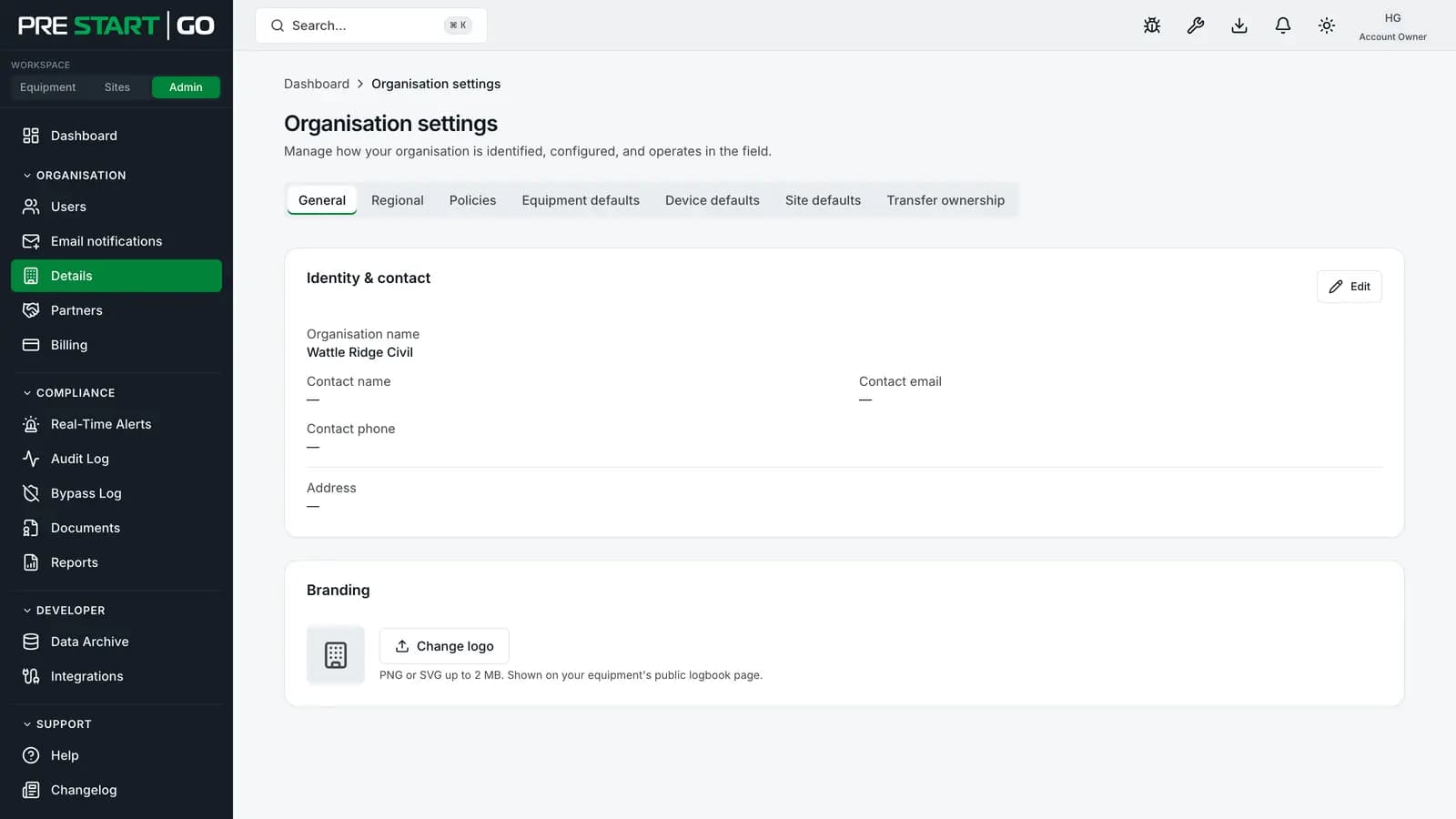
Upload your logo — your branding appears on the console, the mobile app, and exported reports. You can add or change it later under organisation settings.
- 4Note your home region. Your data is hosted in Australia (australia-southeast1).
Choosing a plan
PreStartGo has four plans, each shaped around who you are rather than how big you are.
| Plan | Shaped for | How you get it |
|---|---|---|
| Plant Operator | A small number of machines, no credit card — the full audit trail and hardware interlocks included | Start free online |
| Contractor | Fleets that outgrow the free plan — the same features as Plant Operator, with no cap on machines | Talk to us |
| Builder | The company that runs the site: zones, kiosks, and oversight of every contractor's plant on your ground | Talk to us |
| Hire | Fleets that go out to customers — borrowing, off-hire, and utilisation across the whole fleet | Talk to us |
Nobody is metered on people: no plan limits user accounts, and no plan limits devices either — each device simply carries its own monthly subscription. The free plan's limit is on machines, enforced at registration, and you'll be told before you reach it.
The REST API, webhooks and MCP server are not part of any plan — they come with the Developer platform add-on (available on any paid plan). See Plans Overview for the full matrix.
Note
Plant Operator is free, and the one plan you sign up for yourself — choose Start free, with no card on file. Contractor, Builder and Hire are set up for you by our team after a quote: talk to us or email sales@prestartgo.com when you outgrow the free plan. See Moving to a Paid Plan.
The setup order, and the two steps where it matters
Most setup can happen in any order, but two dependencies are enforced:
- Equipment groups come before equipment. Every machine belongs to a group (Excavators, Telehandlers, Light Vehicles…), and every operator licence is scoped to a group — the group is how the platform knows who may operate what. You cannot register a machine without one.
- Groups also come before licences. An operator licence is for a group, so the group must exist before you can licence anyone into it.
With that in mind, the working order is:
- 1Organisation settings — branding, regional defaults, operational defaults.
- 2
Equipment groups — the classification that carries default checklists and licensing scope.
- 3
Equipment — individually, or in bulk by CSV import. See Managing Your Fleet.
- 4GoTags — assign a tag to each machine as it's registered.
- 5
Checklist templates — a pre-start template is mandatory for the core workflow; service, induction and toolbox templates are there when you need them. See Working with Checklist Templates.
- 6
People — console users by email invite; field operators by licence. See Inviting Your Team.
- 7
Devices — a Technician commissions each Interlock at the machine. See Installing Your Interlock.
Sites and zones are Builder and Hire capabilities, and kiosks are Builder only — a Hire organisation's sites are its yards and depots, without check-in or kiosks. If you're on Plant Operator or Contractor you won't see any of them, because your machines work on other organisations' sites rather than hosting your own. See Site Check-In and Geofencing.
For a day-by-day version of this sequence, see the First-Week Checklist.
Edge cases
- The Account Owner role starts with whoever created the organisation, and the Account Owner can hand it to another active member in the console: Organisation → Details → Transfer ownership. The outgoing Account Owner becomes an Administrator in the same step. If the Account Owner can't sign in to do it, contact support.
- Multi-factor authentication is required for Account Owners and Administrators — you'll be prompted to enrol at sign-in. See Signing In and MFA.
- Joining someone else's org — if your company was invited onto a builder's site, you still create your own organisation; the cross-company relationship is set up separately by the site host.
Troubleshooting
| Symptom | Likely cause | What to do |
|---|---|---|
| "Can't create equipment" / group required error | No equipment group exists yet | Create a group first — the order above is enforced |
| An invited teammate never got the email | Typo, or a spam filter | Re-send from the Users page; see Inviting Your Team |
| Blocked from adding another machine | Plant Operator's machine cap | Talk to us about a paid plan — see Moving to a Paid Plan |
| Prompted for MFA and can't proceed | Account Owner/Administrator MFA enrolment is required | Finish the enrolment — see Signing In and MFA |