Overview
PreStartGo has two kinds of people, and they join in two different ways. Console users — the office side — are invited by email and sign in to the admin console with an email and password. Field operators — the people inspecting and starting machines — are never "invited" at all: you create a licence against their phone number, and their account comes into existence the first time they sign in to the mobile app with that number.
The split is deliberate. An email identity with console access and a phone identity with machine access carry different powers, different sign-in flows, and different audit trails — and one person who genuinely needs both holds both, as two separate identities.
Before you start
- Plan
- Any
- Role
- Administrator or above to invite console users; Contributor or above to create licences
- For operators: their mobile phone numbers
- At least one equipment group, since every licence is scoped to a group
Inviting console users
- 1Open the Users page in the admin console and choose Add User.
- 2Enter their work email address and pick an organisation role — see the table below.
- 3
They receive an email with an invite link, set their password, and land in your organisation. Pending invites are listed on the same page, where you can re-send or revoke them.
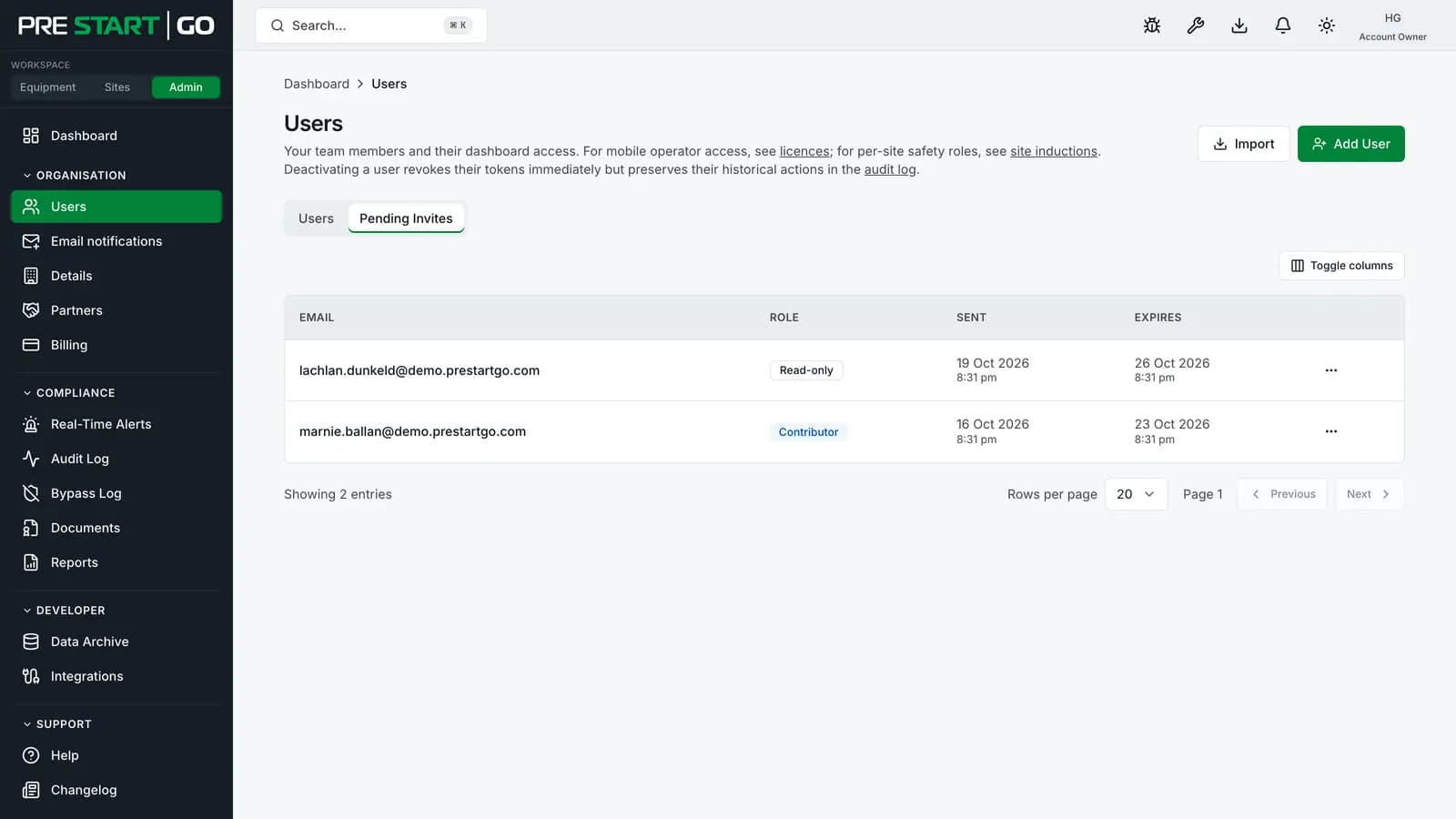
The organisation roles, from widest to narrowest:
| Role | What it's for |
|---|---|
| Account Owner | The organisation's creator — full control, including billing and plan changes |
| Administrator | Day-to-day administration: people, equipment, checklists, sites, and inviting other users |
| Contributor | Creating and updating records without user-management or billing powers |
| Read-only | Look only — dashboards, reports, and records |
Account Owners and Administrators must enrol in multi-factor authentication at sign-in — see Signing In and MFA. The full permission-by-permission breakdown lives in Console Roles and Permissions.
Adding field operators — by licence, not invite
An operator's authority in PreStartGo is a licence: permission to operate a particular group of equipment, at a particular level, for a period you set. To add an operator:
- 1
Open Licences in the console and create a licence against the operator's mobile phone number, choosing the equipment group, the licence role, and a validity period.
- 2
The operator installs the PreStartGo mobile app and signs in with that phone number — a code arrives by SMS, and their account is created on that first sign-in. There is no invite email and no password.
- 3
From then on, the machines in their licensed groups appear in their app, and their pre-starts, defects and unlocks are attributed to them.
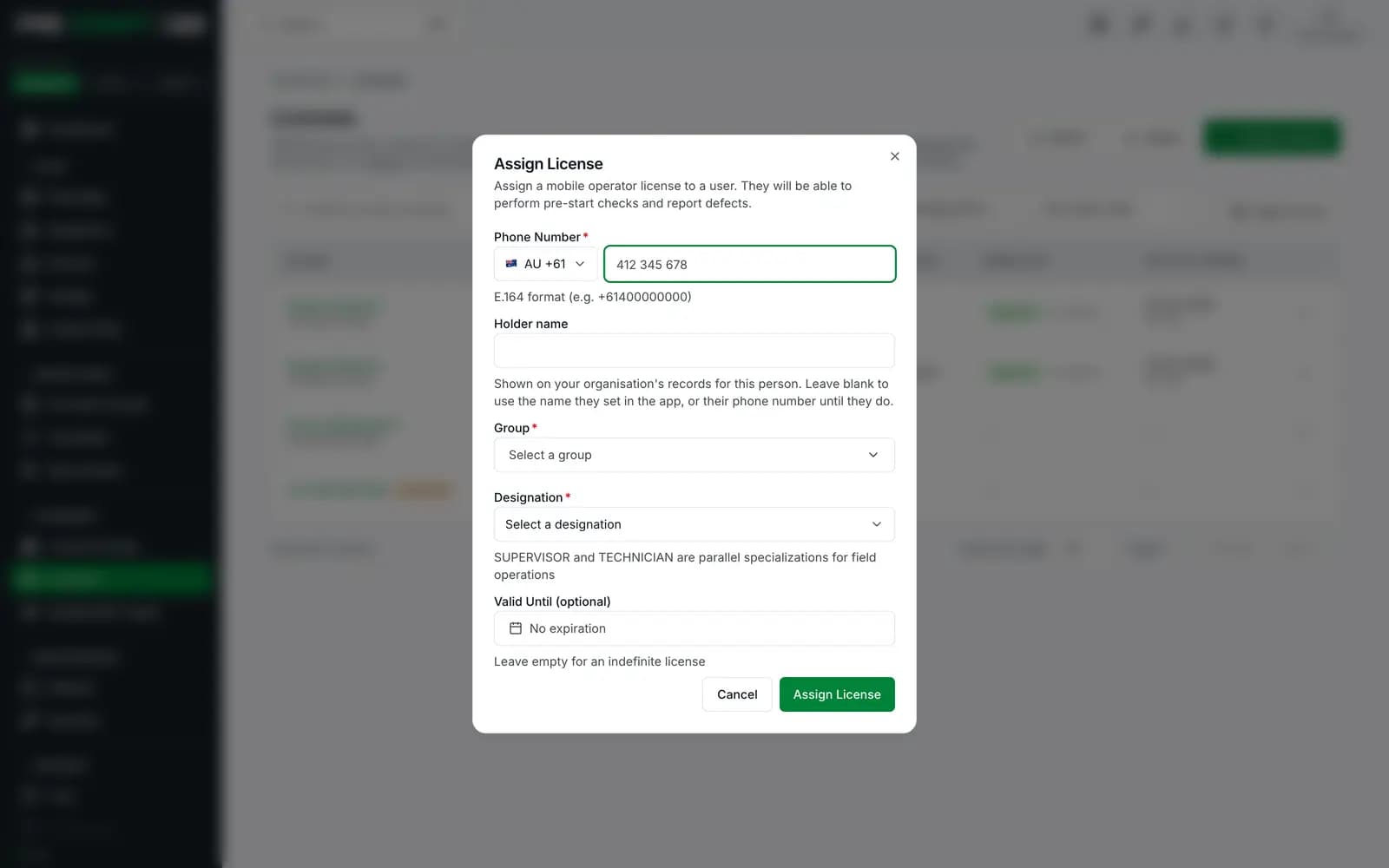
The licence roles sit side by side rather than on a ladder:
| Licence role | Adds |
|---|---|
| Operator | Inspect and unlock equipment in the licensed group |
| Supervisor | Everything Operator can, plus supervisory actions such as service mode and acknowledgements |
| Technician | Everything Operator can, plus servicing and hardware work: commissioning Interlocks, installing or replacing GoTags, and clearing out-of-service lockouts |
| Lead | Everything Supervisor and Technician can, combined — for the leading hand who both signs off checks and services machines |
See Licensing Operators for renewals, revocation and licence periods.
Note
Licences are per group, not per machine or per org — an operator licensed for Excavators sees and operates the machines in that group, and nothing else. That scoping is the platform's answer to "who may operate what", so getting groups right is what makes licensing effortless.
One person, both worlds
A supervisor who also works the console holds two identities: an email account for the console and a phone-based account for the field. They are separate sign-ins with separate audit trails — deliberately, so that what someone did at a machine and what they did at a desk are never blurred together.
Site-based access (Builder plans)
Builders hosting sites have a third audience: site personnel — gate officers, safety officers — who need site tools rather than equipment authority. They're granted site access on the site itself rather than an equipment licence, and they use the lightweight Go web app rather than the full operator app. If you're not hosting sites, this doesn't apply to you.
Edge cases
- Changing an operator's phone number means their identity moves with it — talk to support before recycling numbers between staff, since the number is the sign-in.
- An operator working for two organisations (a contractor licensed by two companies) uses one phone number for both; each organisation's licences grant access to its own equipment, and records stay separated per organisation.
- Removing someone — revoke their licence (field) or remove the user (console). Their historical records remain, attributed to them, as the audit trail requires.
- Accepting while your account is suspended — an invite can't be accepted while the organisation's subscription is suspended, or while PreStartGo has disabled the account. Nothing is created and the invite stays open, so once the subscription is recovered the same link works again, until it expires.
Troubleshooting
| Symptom | Likely cause | What to do |
|---|---|---|
| Invite email never arrived | Typo, or a corporate spam filter | Check the address on the Users page and re-send; ask IT to allow the sender |
| "This company's account is suspended" on accepting | The organisation's subscription is suspended | The Account Owner recovers the payment — see Subscription Lapses — then the invitee opens the same link again |
| "This company's account isn't available" | PreStartGo has disabled the organisation's account | Contact support; the invite stays open meanwhile |
| Operator signs in and sees no equipment | No licence, licence expired, or wrong group | Check their licence covers the group the machines actually sit in — this is the most common onboarding miss |
| Operator gets no SMS code | Wrong number on the licence, or poor coverage | Verify the number digit by digit; codes can take a minute on congested networks |
| A console user can't see the Users page | They're a Read-only user | The Users page needs Contributor or above; inviting people and changing roles need an Administrator |
| "This machine isn't in your licence" at a machine | The machine sits in a group they aren't licensed for | Licence the right group, or reclassify the machine — see Licensing Operators |