Overview
Every GoTag carries the same identity two ways — a printed QR code and an NFC chip — so you can scan with whichever is more convenient. Both land in exactly the same place: the equipment's record in the app, or the machine's public logbook page from a plain camera.
As an operator, inside the app
From the Start tab, tap Scan equipment tag. One sheet offers both methods, and the app remembers which you used last:
- Camera — point the phone at the QR code.
- NFC — tap the phone to the chip. Handy in gloves, poor light, or when the printed code is dirty or worn but the chip underneath is intact.
A successful scan opens the equipment's page directly, and the pre-start starts from there with the correct checklist already resolved. See Completing a Pre-Start Inspection.
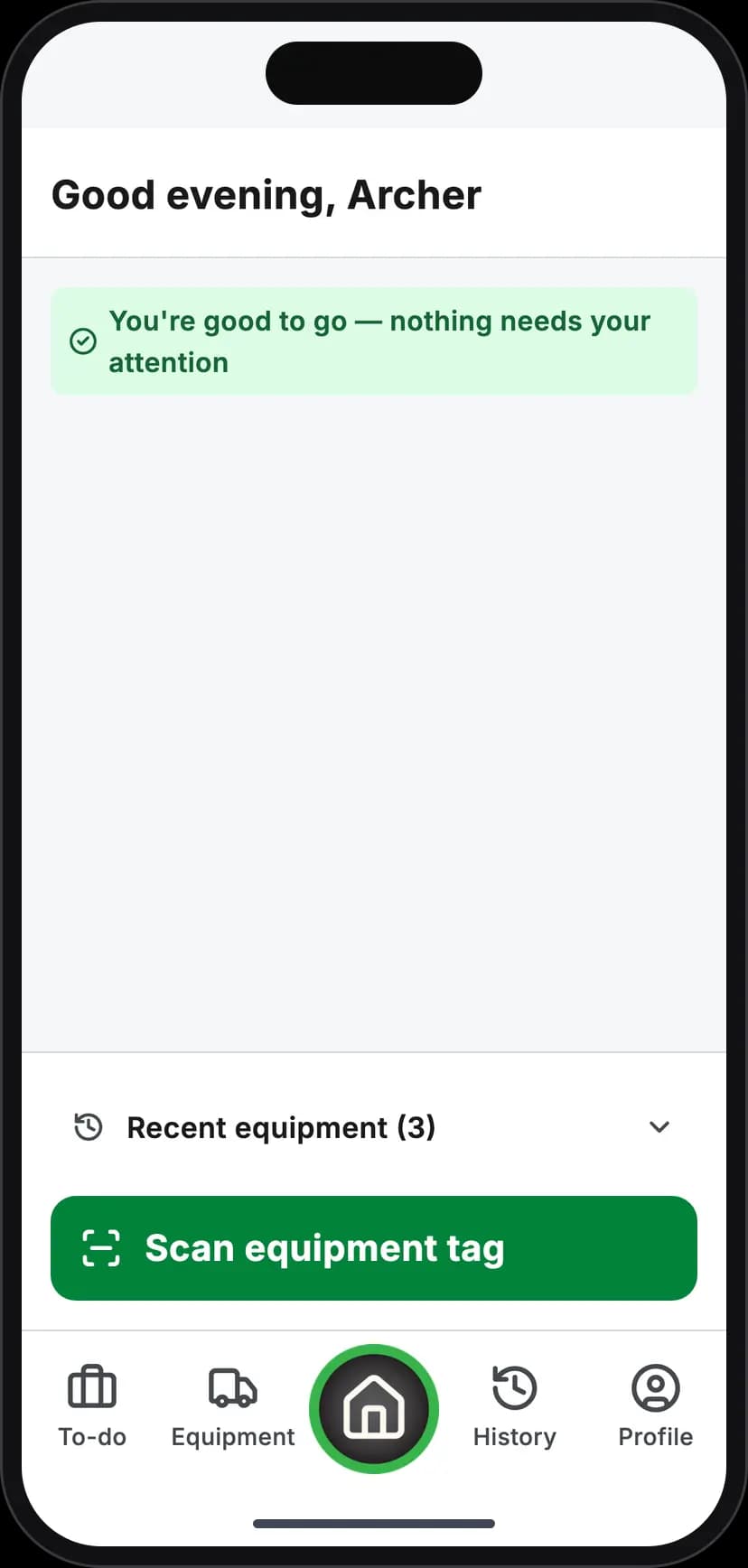
Tap Scan equipment tag to start
Note
Scanning is the recommended way to start an inspection — it positively identifies the machine when several similar ones sit together — but it is not enforced. The same pre-start can be reached from the Start tab's Recent Equipment card or by browsing the equipment list. See Finding and Scanning Your Equipment.
As anyone, with just a phone camera
You do not need the PreStartGo app to look up a machine's public record. A gate officer, an auditor, or another contractor can read the same physical tag with the phone they already carry:
- QR code — modern camera apps on iOS and Android recognise a QR code automatically and prompt to open the link. No separate scanner app.
- NFC chip — modern iPhones and Android phones read an NFC tag without any app open. Android generally just needs the back of the phone near the chip; on iPhone (XS and later), use Control Centre's NFC tag reader if a simple tap doesn't trigger.
Either path opens the machine's public digital logbook in the browser — no login, no account.
Where the link goes
A GoTag's QR code encodes a short link of the form prestartgo.com/c/<code>. What happens next depends on who scans it:
- A phone with the PreStartGo app installed opens the link straight into the app, landing on the equipment record.
- Any other phone opens the public logbook page in the browser.
Codes on other PreStartGo hardware follow the same pattern — a site or kiosk QR shows guidance for that surface instead — so scanning any PreStartGo code is always safe and lands somewhere sensible.
Reference: which method when
| Situation | Best method |
|---|---|
| Normal conditions | Either — use whichever is quicker for you |
| Gloves on, wet or dirty tag | NFC |
| Printed code worn, torn or faded | NFC — the chip usually survives damage to the face |
| Bright glare on the label | NFC, or shade the tag and retry the camera |
| Several machines parked close together | NFC — near-contact makes reading the wrong tag unlikely |
| No PreStartGo app on the phone | Either — both open the public logbook |
Troubleshooting
| Symptom | Likely cause | What to do |
|---|---|---|
| NFC doesn't respond on first tap | Phone's antenna not over the chip | Move the phone slowly across the tag rather than holding it still — antenna position varies by model |
| NFC weak or intermittent | Tag mounted hard against heavy steel | Use the QR code; mention it at the next re-tag so the replacement gets a better spot |
| Camera won't recognise the QR | Glare, dirt, or damage on the printed face | Wipe the tag, shade it from direct sun, or fall back to NFC |
| Scan opens a "not found" page | The tag isn't installed against any machine | The tag may be new stock or retired — a Technician can check and install or replace it |
| Neither QR nor NFC works | The tag is damaged | See Damaged or Unreadable GoTag |