Overview
The console's dashboard is the fleet's live snapshot; the Audit Log is its permanent memory. This article covers reading both — including the one definition worth knowing precisely, because it changes how you read every compliance figure on the page.
Before you start
- Plan
- Any
- Role
- Any console role can view the dashboard and the Audit Log
The dashboard at a glance
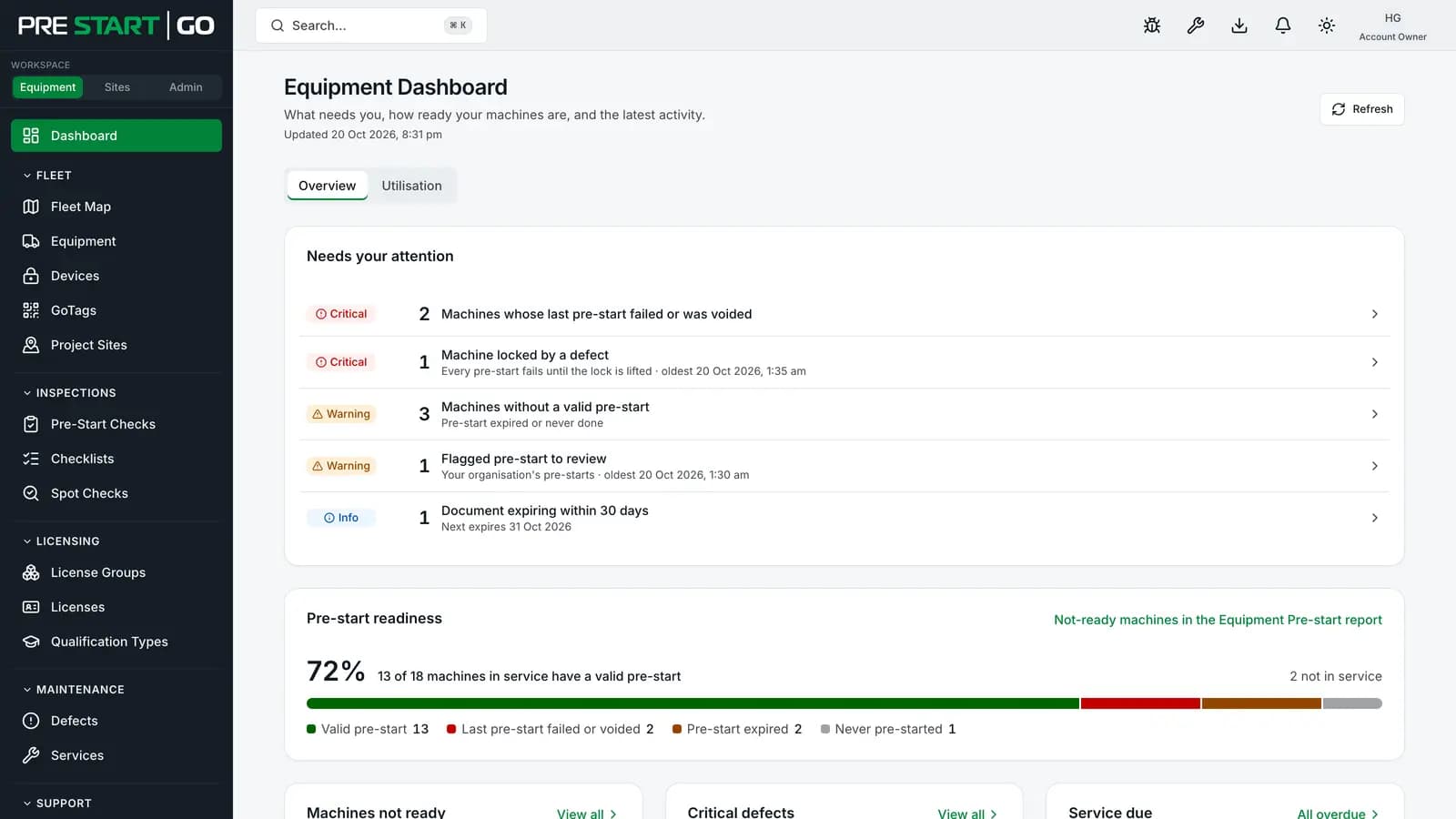
The Equipment Dashboard opens on Overview, laid out in the order you'd work through it:
- Needs your attention — what needs someone now, most urgent first: machines locked by a defect, open critical defects, open high-severity defects, machines whose last pre-start failed or was voided, machines without a valid pre-start, flagged pre-starts and app bypasses to review, active critical alerts, alerts to acknowledge, machines overdue for service, documents that have expired, and documents and licences expiring within 30 days. Each line has a count and opens a list of exactly those records. You see only the lines whose lists your role and plan let you open, and when everything checked is fine it says All clear.
- Pre-start readiness — one bar across the machines in service, split into Valid pre-start, Pre-start expired, Never pre-started and Last pre-start failed or voided, with the share that have a valid pre-start. Machines under maintenance or marked inactive are counted separately as not in service. Click a part of the bar to open those machines.
- Machines not ready, Critical defects and Service due — the first few of each, with a link to the full list. Where your plan includes spot checks, Recent spot checks joins them, with how many spot checks in total weren't compliant. Below them, one line for your devices: Interlocks registered, how many are on low battery, and, if you have Trackers, how many are online.
- Pre-start pass rate — the share of pre-starts that passed on each of the last 30 days. A day with no pre-starts is left as a gap, not shown as zero.
- Latest activity — the newest pre-starts, defects, completed services and (for Administrators and above) bypasses, with links to all pre-starts and all defects.
Needs your attention and the readiness bar refresh themselves every minute while the page is open, and the time of the last update is shown at the top. With Live Tracking on, a second tab shows fleet utilisation.
What "compliant" means, precisely
A machine is compliant while its last passing pre-start is still valid — before its pre-start timer runs out — and for no other reason. The dashboard, reports, coverage and the map all use that one rule, the same one the app and the Interlock use.
Two results pass: Pass, and Pass with defects. That second one matters: pass with defects means every critical item passed and something non-critical didn't — the ordinary daily outcome in a working yard. The interlock unlocks on it, and the machine is compliant while carrying open non-critical defects.
Two readings to avoid:
- "There are open defects, so we're non-compliant" — no; only a failed critical item (whose lock holds until its defect is closed) or an out-of-service lockout fails a pre-start.
- "Compliant means checked today" — no; the day doesn't matter, only the timer. A pre-start done late yesterday that is still valid counts this morning, and one done an hour ago that has been cancelled or has expired doesn't.
Finding the Audit Log
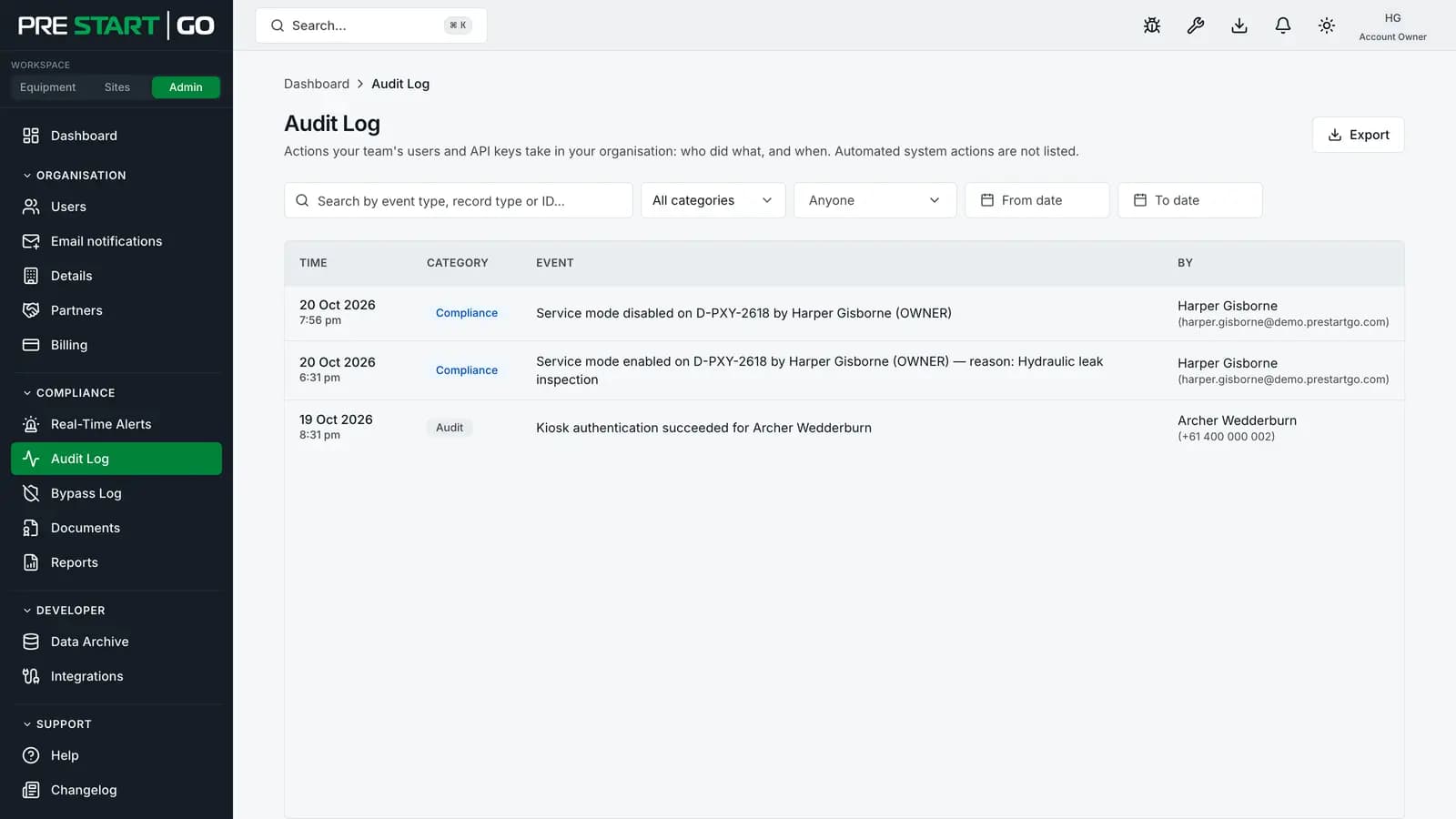
Switch the sidebar toggle near the top to Admin, then open Audit Log under Compliance — a table of the actions your team's people and API keys take in your organisation: Time, Category, Event and By, newest first. (Until October 2026 this page was called Activity; old links still open it.)
The Admin dashboard is a second way in: its Latest changes panel lists the ten newest entries, each opening that entry, and View all opens the Audit Log.
Every console role can read and export the Audit Log, Read-only included, so an outside auditor can be given a Read-only seat and nothing more. One detail is shortened below Administrator: a webhook's address shows only its start (for example https://hooks.example.com/…), because the full address can work like a password.
- 1
Entries are listed newest first. Page back through older ones with the controls under the table.
- 2
Narrow the list with the search box (it matches an entry's event type, record type or ID), the Category and person filters, and a date range. Clear all filters resets them, and Export downloads the entries the filters select.
- 3
Click a row for its detail page: Event (the action, the resource, when) and Provenance (who, under Actor).
Note
There is no Edit or Delete anywhere on an Audit Log entry — ever. Entries are written into a tamper-evident, append-only record whose integrity is machine-verified nightly; the Audit Log is the human-readable window into it. See Understanding Audit Trails.
What writes an entry
Every meaningful mutation does — creating equipment, editing a checklist, granting a licence, changing a role, a review decision, a lifecycle change. The pairing is enforced in the platform's own build gates: a change that writes data without writing its audit entry fails our CI, which is why "it happened but there's no record" isn't a state the console can get into.
Field work writes entries too. When an operator confirms a still-valid pre-start in the app, the entry reads "Pre-start confirmed on" and the machine's name, with the operator under By. The pre-start's own page lists every Confirm against it under Hot seats, marking which were another operator taking the machine over.
Offline field work keeps both of its timestamps: when the action happened on the phone, and when it reached the platform. The two legitimately differ for every offline sync, and the record preserves both rather than pretending they're the same moment.
Edge cases
- Actions by the PreStartGo support team (if you've ever asked us to act on your behalf) are kept in the underlying record, attributed to us, but the Audit Log page lists only your own team's and API keys' actions. Ask us if you need ours.
- Cross-organisation activity — work done on your machines by a borrowing organisation's people is attributed to them, with the cross-organisation context preserved. See Cross-Org Equipment Rental.
- The log never thins out. Retention of the audit record is a platform property, not something a console setting can shorten.
Troubleshooting
| Symptom | Likely cause | What to do |
|---|---|---|
| Can't see the Audit Log | The sidebar is showing Equipment or Sites | Switch the toggle near the top of the sidebar to Admin |
| A webhook address is cut short | Your role is below Administrator | Expected — an Administrator or the Account Owner sees the full address |
| An expected entry seems missing | Further back than the page shown, or the action was field-side and hasn't synced | Page back through older entries; check again after the phone syncs |
| An entry's time looks wrong | You're reading recorded-at vs happened-at | Open the detail — offline work carries both timestamps |
| Readiness lower than expected | Machines never pre-started count against it | Click the Never pre-started part of the readiness bar |